
Switch in one click
Choose a microphone, speaker or preferred camera without opening System Settings.
Fast I/O switching for macOS
EyeOh keeps the choices you reach for every day in one quiet menu—including Bluetooth devices that are not connected yet.
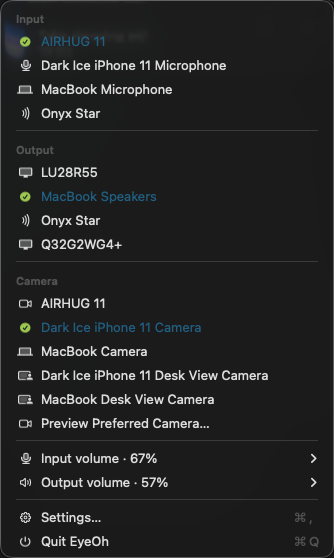
Less hunting. More doing.
EyeOh stays focused on one job: making your Mac’s inputs and outputs quick to see, reconnect and switch.
Choose a microphone, speaker or preferred camera without opening System Settings.
A previously used headset can stay in the menu while disconnected. Click Connect and carry on.
EyeOh stores separate input and output volumes for devices macOS lets software control.
Pick a built-in, external, Desk View or Continuity camera and open preview only when needed.
Small moments, made easier
Real screenshots from EyeOh 0.4. No mock controls and no carefully renamed demo devices.
Bluetooth reconnect
Once EyeOh has seen a paired Bluetooth audio device, it keeps a dimmed shortcut under Input and Output. Turn the device on, click Connect, and EyeOh asks macOS to reconnect and select only the route you chose.
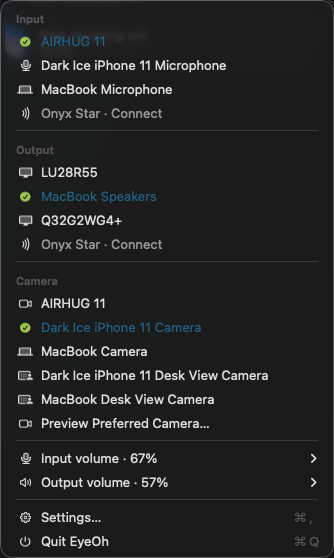
Per-device volume
Set a level once and EyeOh remembers it for that device and direction. The next time you switch back, your preset comes with you.
Hardware-controlled devices remain honest: EyeOh tells you when macOS cannot change their level.
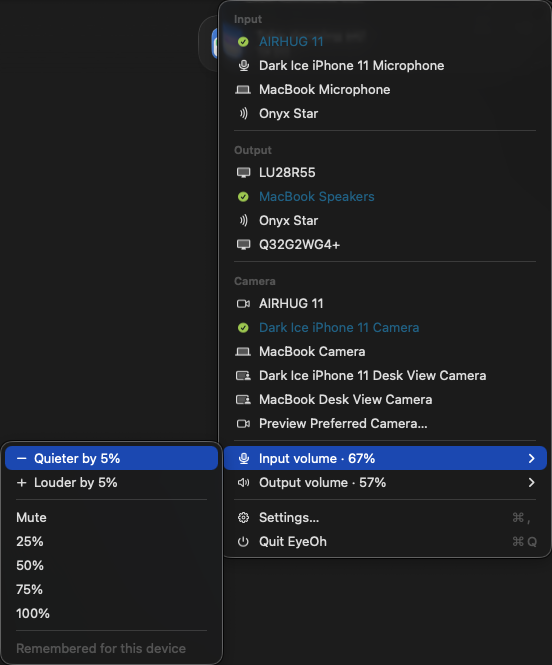
Audio and video together
USB mic, Bluetooth speaker, built-in camera, iPhone Continuity Camera and Desk View all sit in one compact menu. The blue label and lime check make the current choice unmistakable.
Apps pinned to a named device can still keep their own selection; set them to Default or System to follow EyeOh.
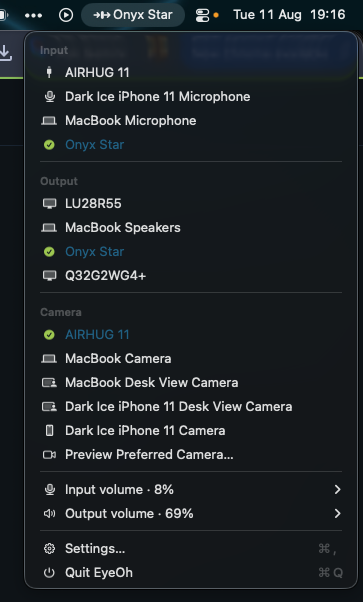
Quietly configurable
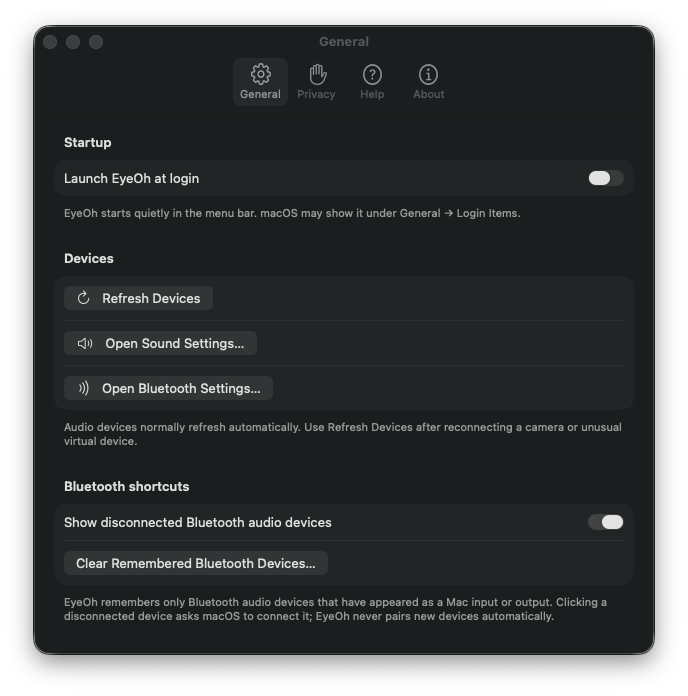
Launch at login, device refresh, Sound and Bluetooth Settings, and remembered-device cleanup live in Settings—not in the menu you use all day.
Up and running
EyeOh lives in the menu bar, with no Dock icon, driver, account, or background helper.
Open the notarized DMG and drag EyeOh into Applications.
Launch EyeOh from Applications. Its compact route symbol appears in the menu bar.
Click the input, output or preferred camera you want. That is the whole workflow.
The app sends nothing
EyeOh 0.4 stores device choices, remembered Bluetooth shortcuts and volume presets on your Mac. Camera access is used only while a preview you opened is visible. The shipping build has no PostHog or Sentry service connected, so both reporting controls are unavailable and no EyeOh diagnostics leave your Mac. The website counts aggregate download-button intent without cookies or a visitor identifier.
Read the current-data statement and future diagnostics boundary →
Good to know
Meeting apps can be pinned to a named device. Choose Default or System in that app so it follows EyeOh.
Voice Control has its own microphone choice under System Settings → Accessibility → Voice Control. Apple does not provide apps with a supported way to change that separate selection, so choose the same microphone there or use Automatic.
No. It changes device settings but never captures microphone audio.
After EyeOh has seen a paired Bluetooth audio device, it keeps a dimmed shortcut while that route is disconnected. Clicking it asks macOS to reconnect. EyeOh does not scan for, pair or automatically connect unknown devices.
Yes. An eligible nearby iPhone made available by Apple Continuity Camera appears automatically. Camera preview needs permission only while its window is open.
None by EyeOh 0.4. PostHog and Sentry support exists in the source, but the current public build contains no provider configuration. The Settings switches are disabled and no EyeOh analytics or crash reports are sent.
The direct notarized download is available now. A sandboxed Mac App Store edition is planned; macOS permits both channels, and each will be clearly labelled if their capabilities differ.
Yes. EyeOh Core is MIT-licensed. Official Dark Ice names and artwork are protected separately.
One useful little menu
EyeOh is native, notarized, free, and focused on the switches that interrupt your day.
Download EyeOh — Free